If you're looking to customize your WordPress website, using a child theme is a safe and efficient way to do so. Child themes allow you to modify your site without affecting the parent theme, ensuring that your customizations are not lost when you update the theme.
Whether you're a beginner or an experienced developer, this guide will walk you through the process of creating a WordPress child theme from scratch.
What Is a WordPress Child Theme?
WordPress child theme is a theme that inherits the functionality and styling of another theme (known as the parent theme). The primary purpose of a child theme is to allow you to modify or customize the theme without affecting the parent theme's files. This means you can update the parent theme without losing any of your custom changes.
A child theme works by overriding specific templates, styles, and functions of the parent theme. It’s especially useful for making adjustments like changing CSS, modifying PHP functions, or adding custom features without losing those changes after theme updates.
When Should You Consider a Child Theme in WordPress?
There are several key scenarios where using a child theme becomes essential for maintaining the safety, stability, and longevity of your WordPress website.
For Safe Customizations: If you plan to modify your theme’s CSS or add custom features, use a child theme to protect your changes from being overwritten during updates.
To Test New Features: A child theme allows you to experiment with new layouts or functions without risking your live site. If things go wrong, you can deactivate it easily.
To Keep Customizations After Updates: Child themes preserve your customizations even when the parent theme is updated, so you don’t lose any tweaks or design changes.
If you plan to make any significant changes to your site’s theme, it’s always best to use a child theme to protect your customizations.
Essential Preparations for Create a WordPress Child Theme
Before start into creating a child theme, ensure you have the done following things:
When you make any changes, backup your site (files and database) to ensure you can restore it if needed.
Also, pick a parent theme that suits your design needs and has a solid update history and active support. Regular updates ensure security and new features.
Work on a staging site or local environment, not your live site. This allows you to test changes safely before applying them to your live site.
Steps to Build a WordPress Child Theme Manually
Creating a child theme manually involves creating a few essential files, linking them to the parent theme, and then activating the child theme. Let's go step-by-step.
Step 1: Creating the Child Theme Folder
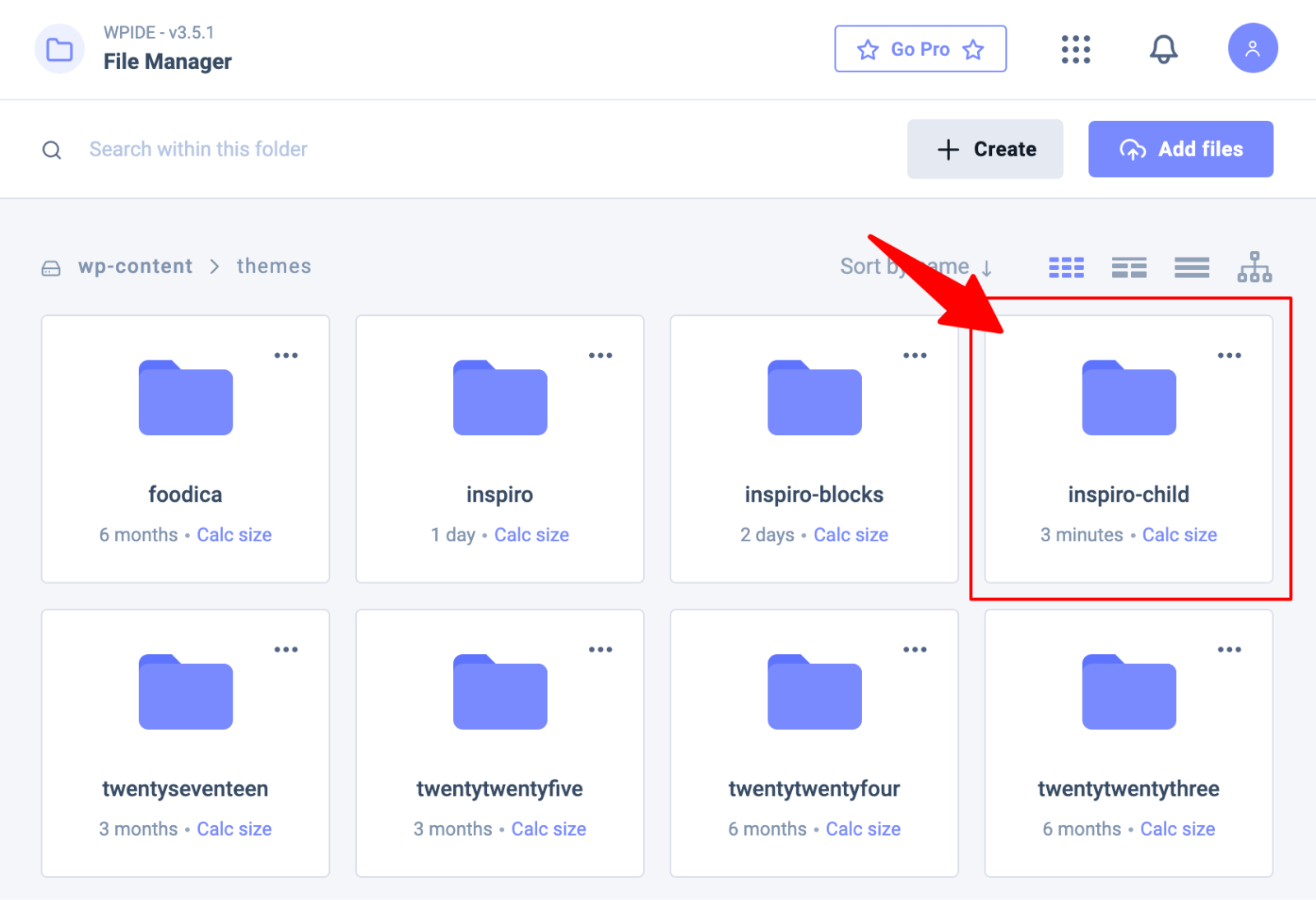
The first step in creating a child theme is to create a folder in the /wp-content/themes/ directory of your WordPress installation. This folder will store all the files associated with your child theme.
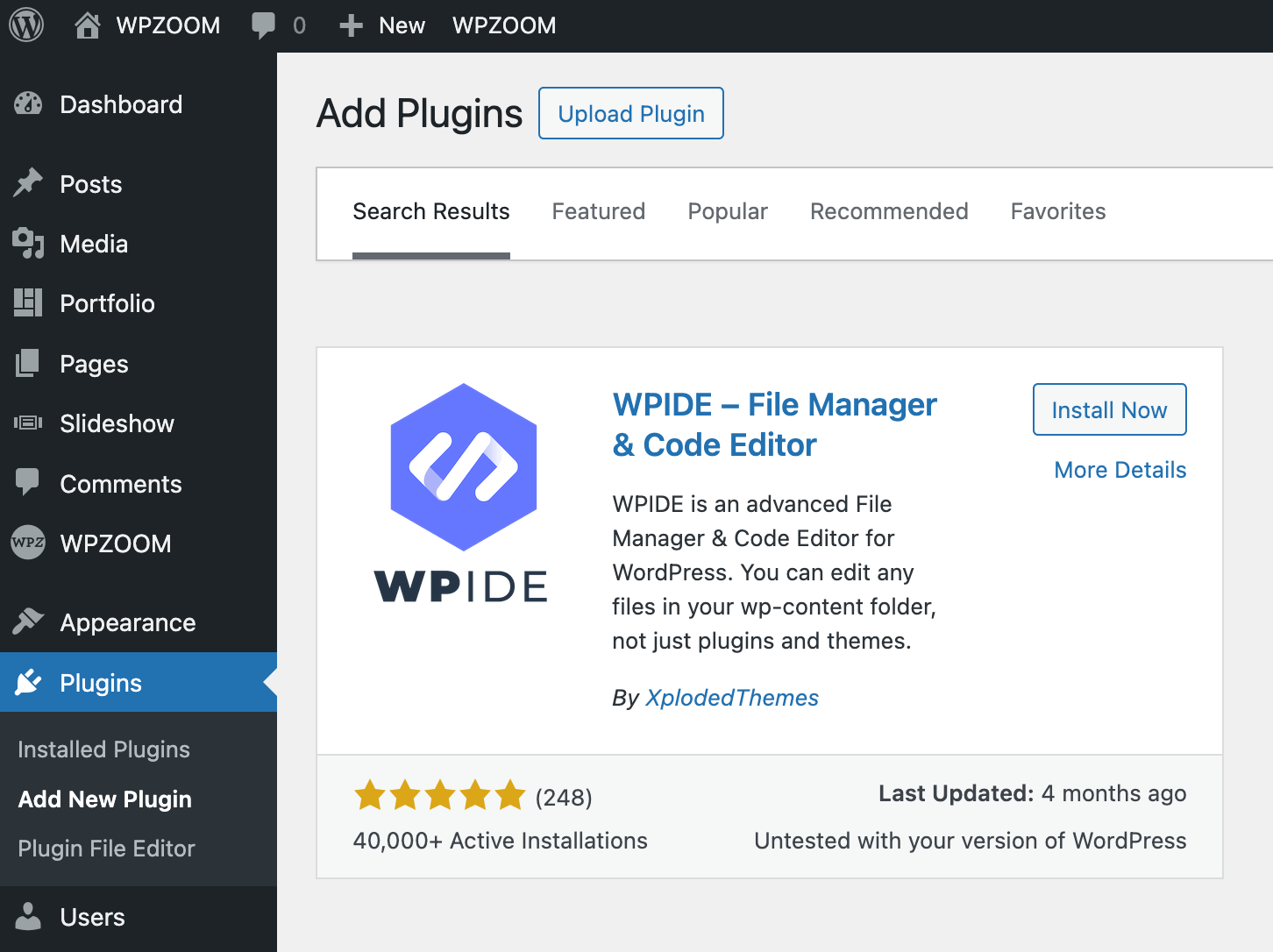
Access your site’s files via FTP or File Manager in your hosting control panel.
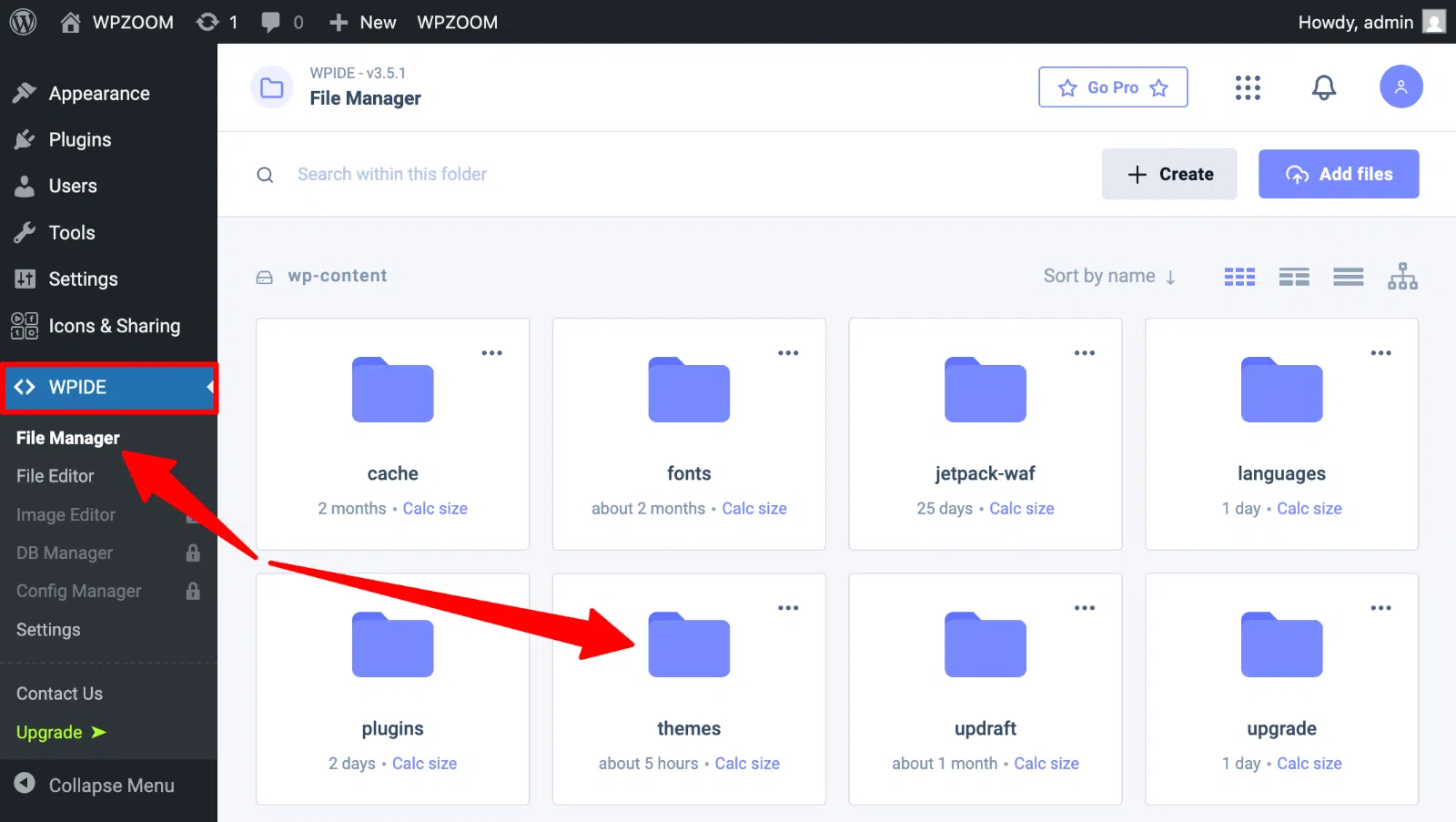
Navigate to wp-content > themes.
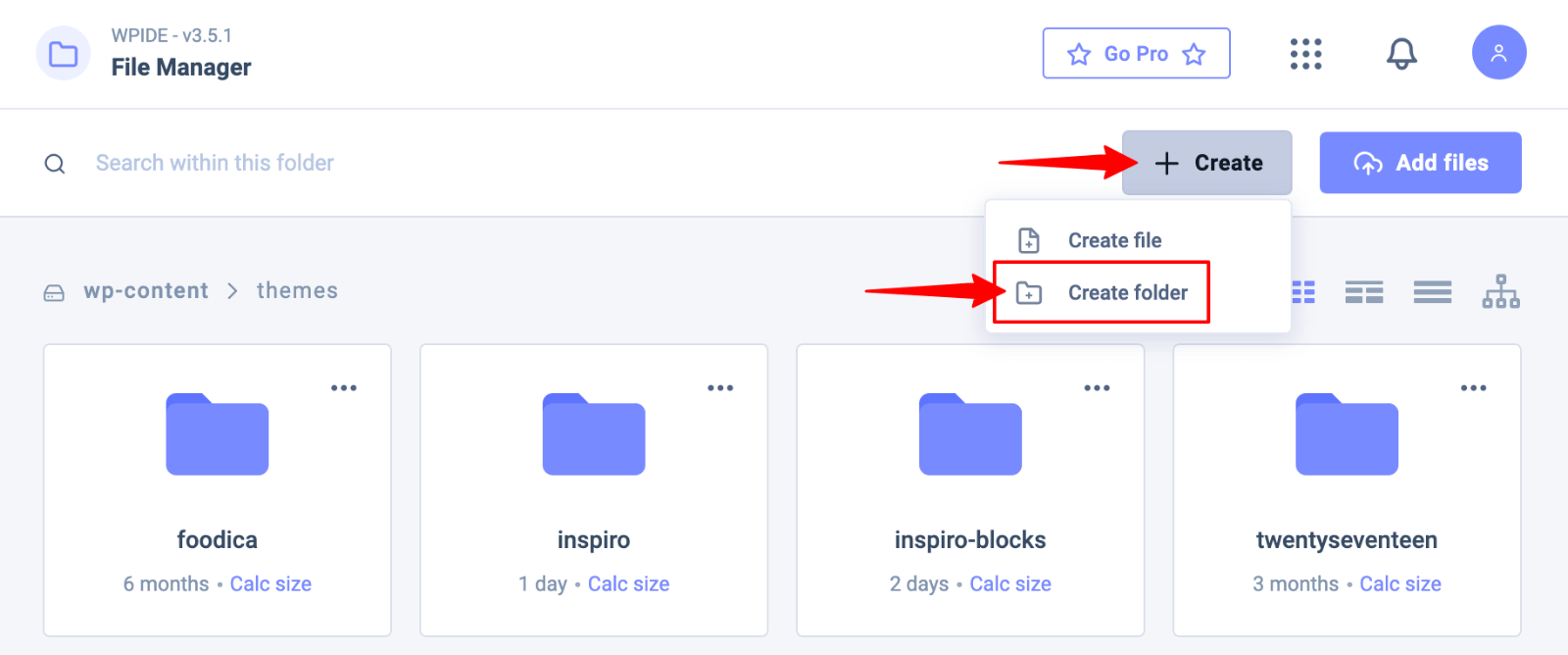
Create a new folder for your child theme. Name the folder something descriptive, for example, twenty twenty one-child (if the parent theme is "Twenty Twenty-One").
Step 2: Creating the Stylesheet (style.css)
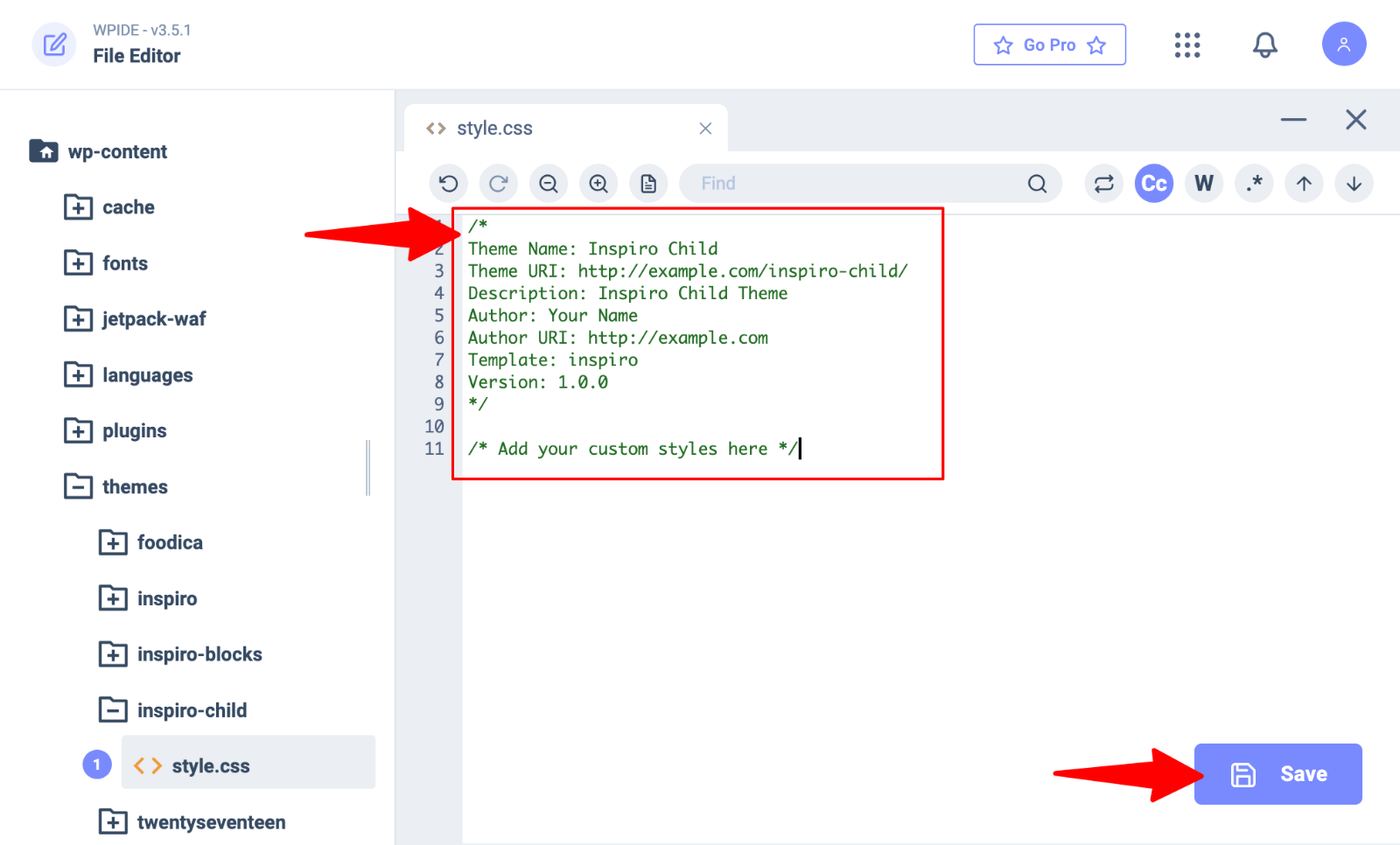
In your child theme folder, create a file called style.css. The style.css file in your child theme will define the custom CSS and link your child theme to the parent theme.
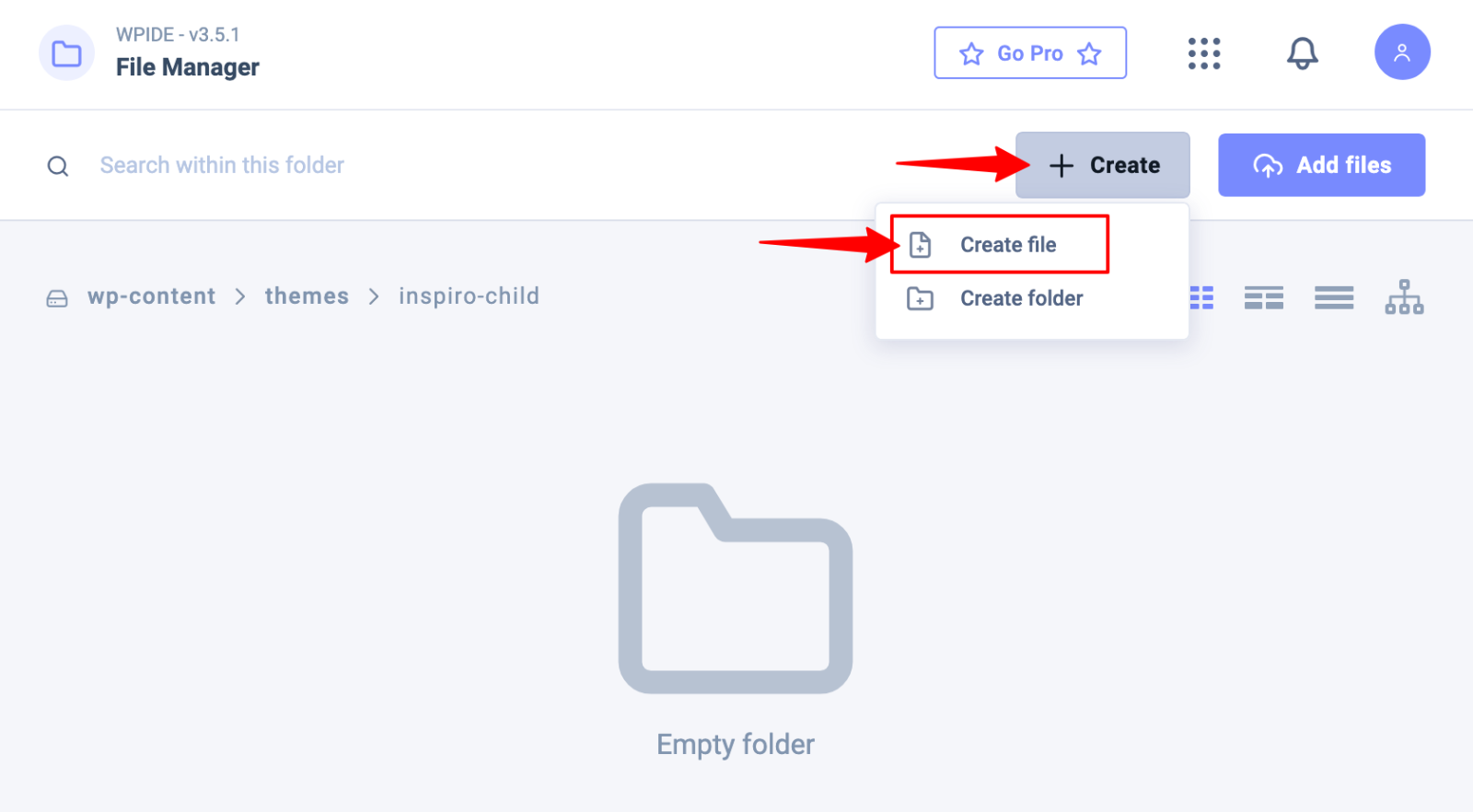
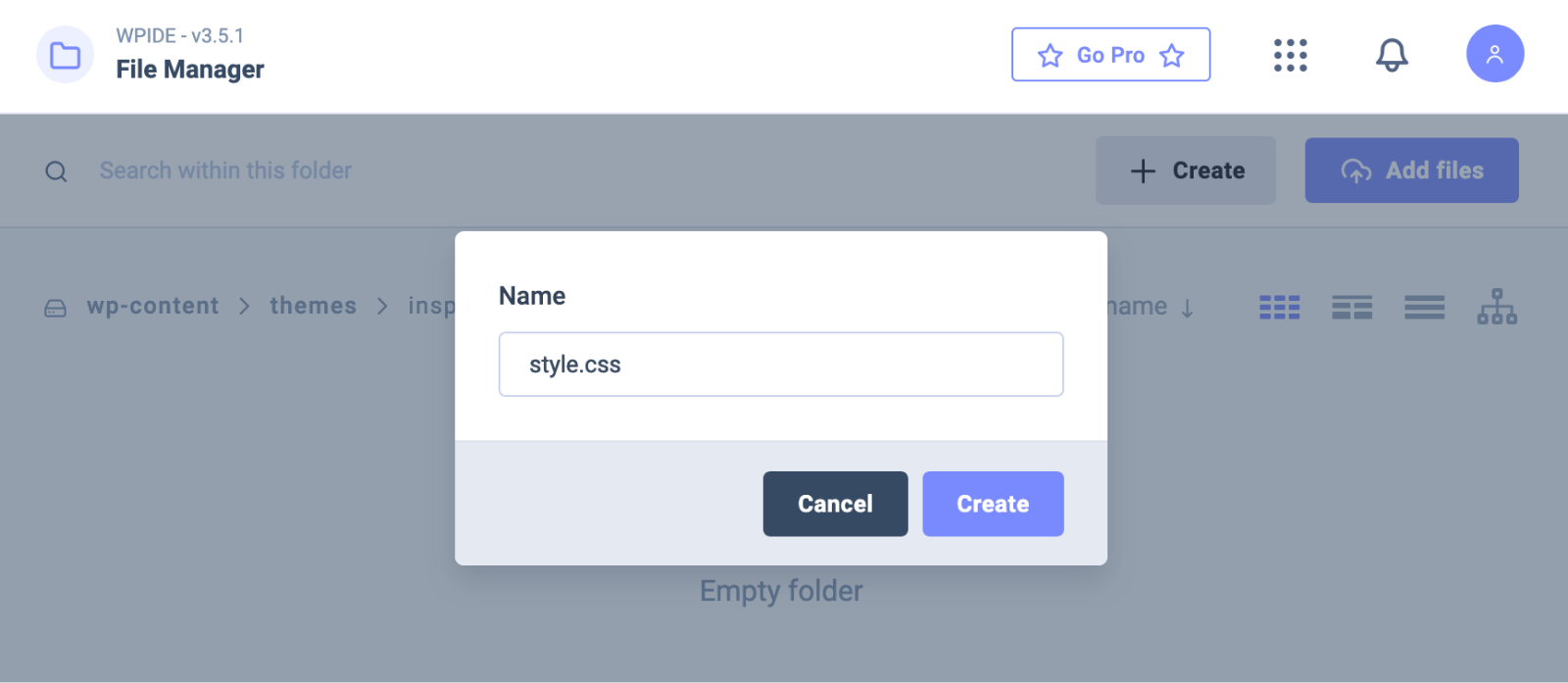
This file also includes metadata about your child theme.
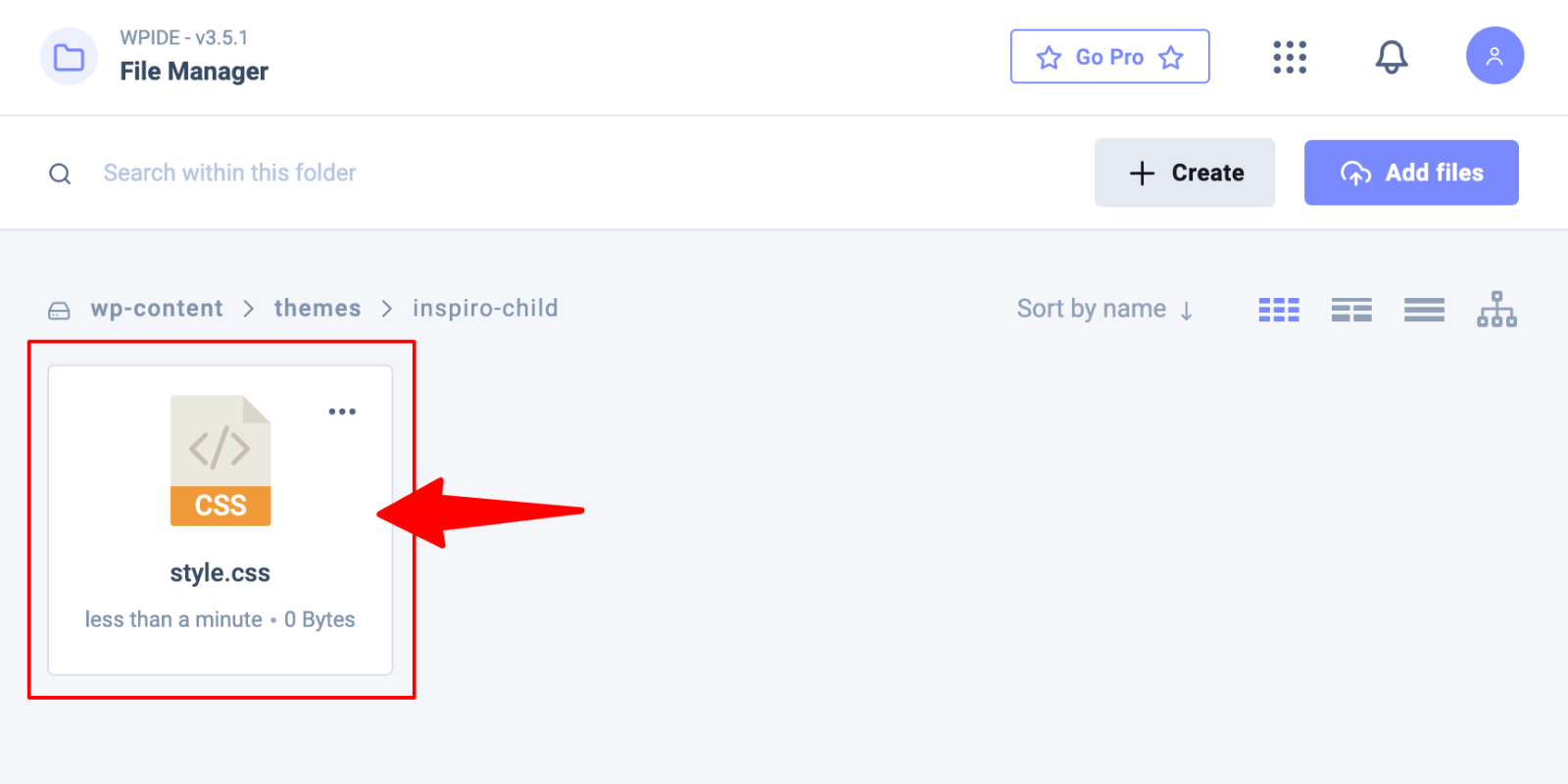
Create a style.css file in your child theme folder and add the following information at the top of the style.css file to link your child theme to the parent theme:
/*
Theme Name: Twenty Twenty-One Child
Theme URI: http://example.com/twenty-twenty-one-child
Description: A child theme for the Twenty Twenty-One theme.
Author: Your Name
Author URI: http://example.com
Template: twentytwentyone
Version: 1.0.0
*/
/* Custom CSS goes here */
Breakdown of the code:
Theme Name: The name of your child theme.
Template: This should be the directory name of your parent theme (e.g., twentytwentyone for the Twenty Twenty-One theme).
Version: The version of your child theme.
Custom CSS: You can start adding your custom CSS below the comment section.
Then click the save button.
Step 3: Creating the Functions.php File
Next, create a functions.php file in your child theme folder. This file allows you to add custom functions and modifications to your theme.
Add the following code to enqueue the parent theme’s stylesheet:
<?php
// Enqueue the parent theme's style.css
function my_child_theme_enqueue_styles() {
wp_enqueue_style('parent-theme-style', get_template_directory_uri() . '/style.css');
wp_enqueue_style('child-theme-style', get_stylesheet_uri(), array('parent-theme-style'));
}
add_action('wp_enqueue_scripts', 'my_child_theme_enqueue_styles');
This code ensures that the parent theme's styles are loaded first, followed by the styles from your child theme.
Breakdown of the code:
wp_enqueue_style: This function ensures that the parent theme’s styles are loaded first, followed by the styles from the child theme.
Step 4: Activating the Child Theme
Now that you’ve created the essential files, you can activate your child theme.
Log into your WordPress dashboard.
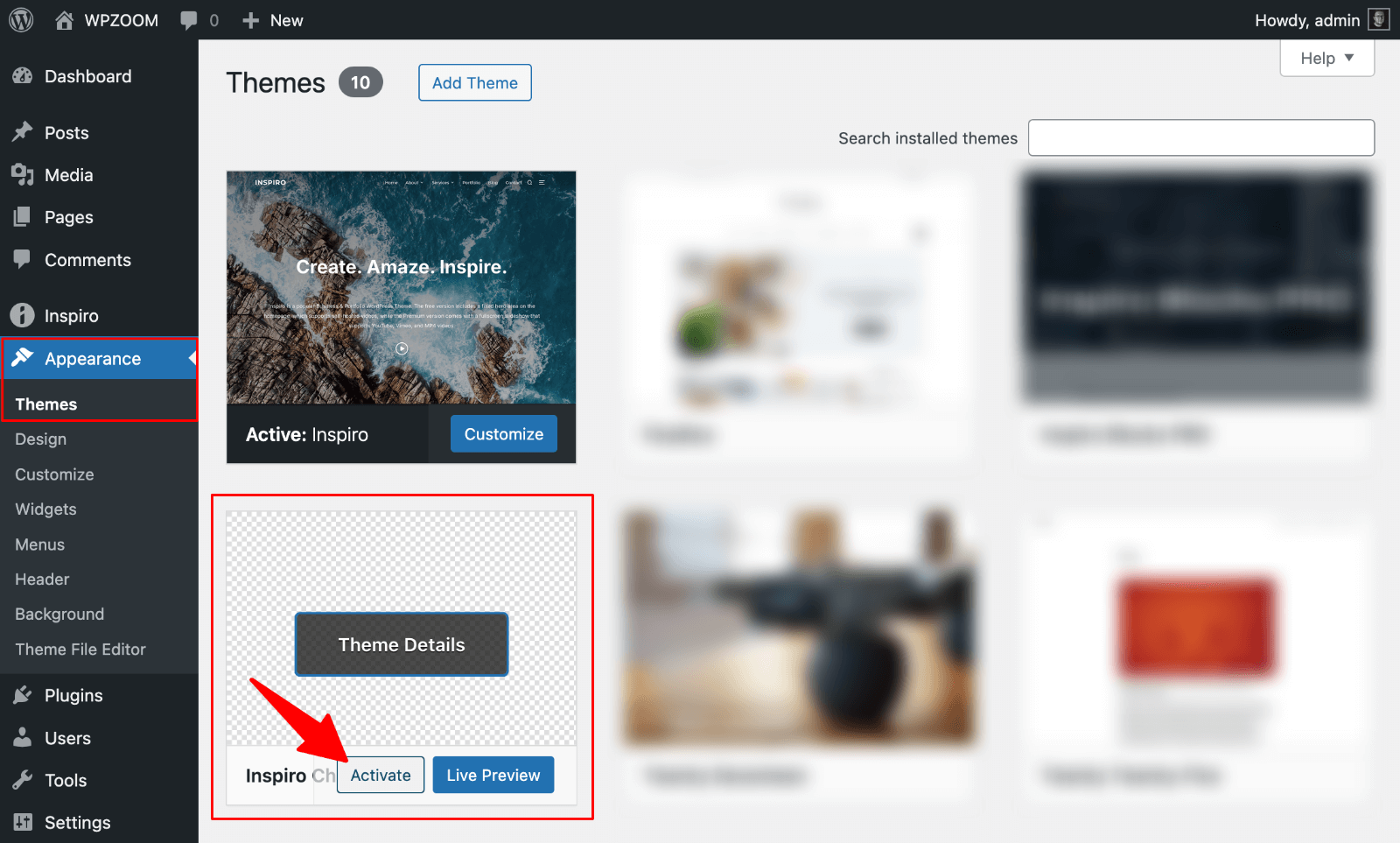
Go to Appearance > Themes.
You should now see your child theme listed. Click Activate to make it the active theme.
Easily Build a WordPress Child Theme Using Plugins
If you’re not comfortable with creating a child theme manually, there are plugins available that make the process easier.
WP Child Theme Generator Plugin for Classic Themes
The WP Child Theme Generator plugin allows you to quickly generate a child theme without writing any code. It’s a simple solution for beginners or those looking for a fast setup.
Install and activate the plugin.
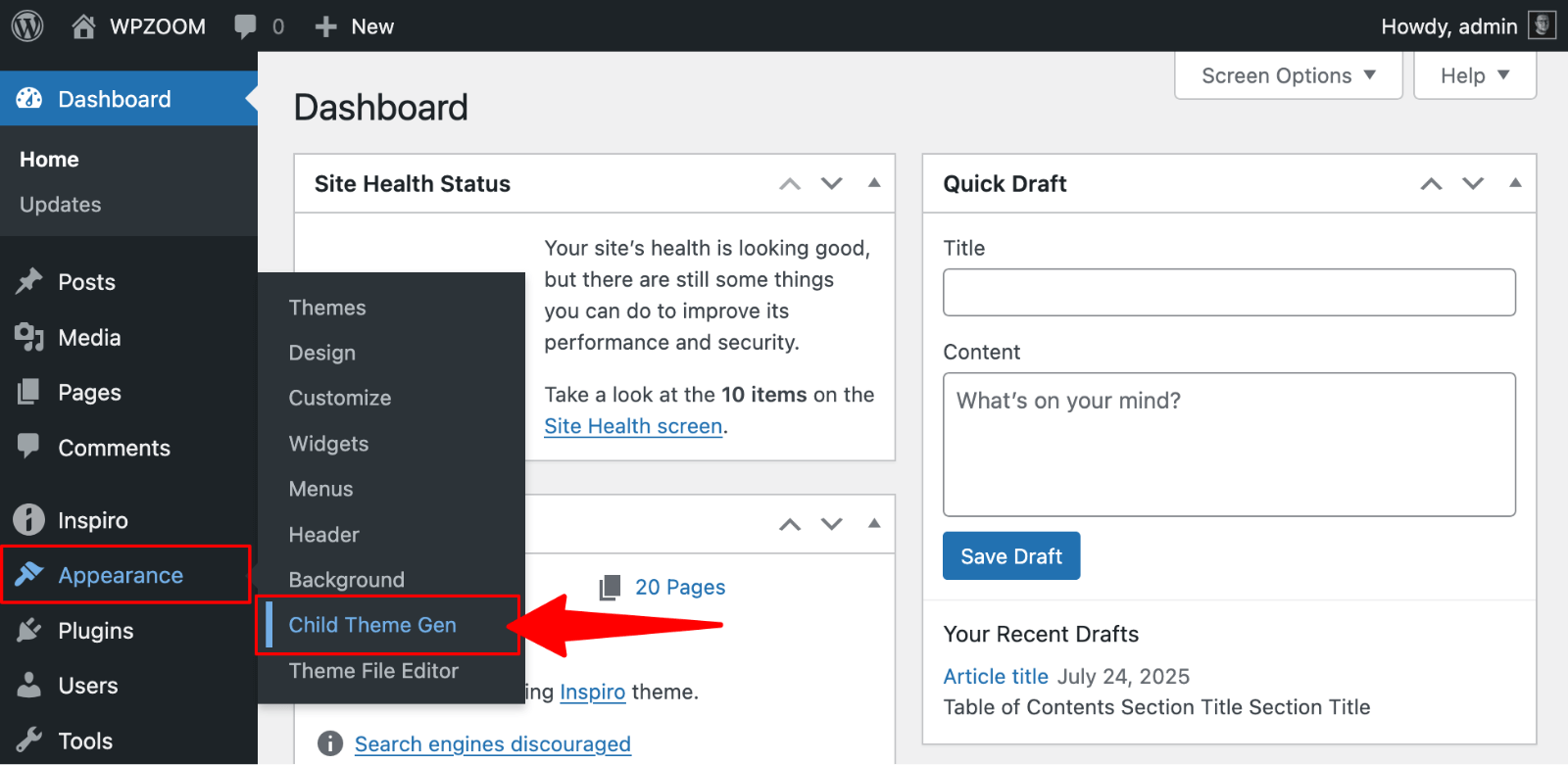
Navigate to Appearance > Child Themes in your WordPress dashboard.
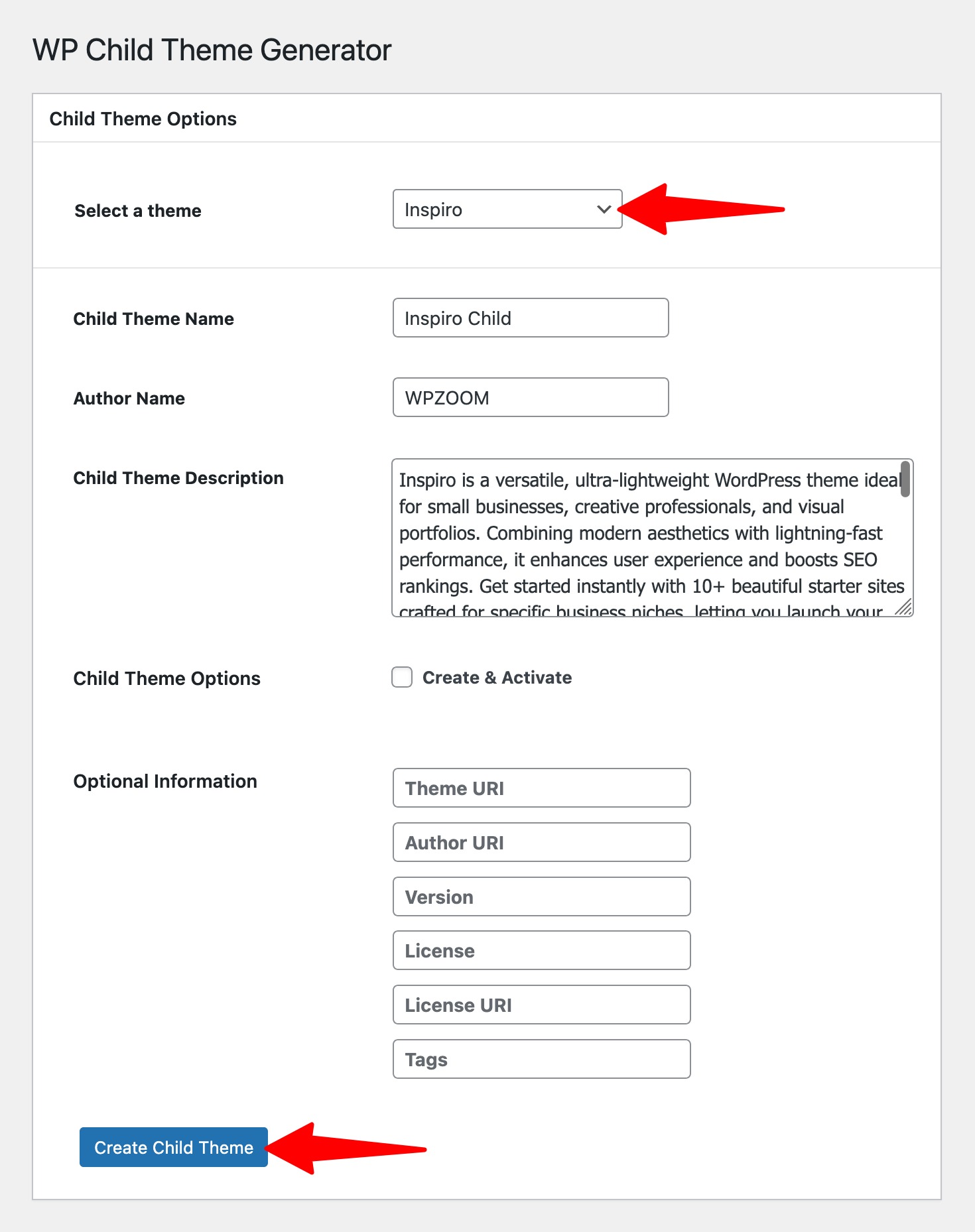
Fill out the form with the required details (e.g., parent theme name, child theme name).
Click Generate to create your child theme.
Create Block Theme Plugin for Block Themes
If you’re using a block-based theme (like Twenty Twenty-Two or newer themes), you can use the Create Block Theme plugin to generate a child theme for block themes.
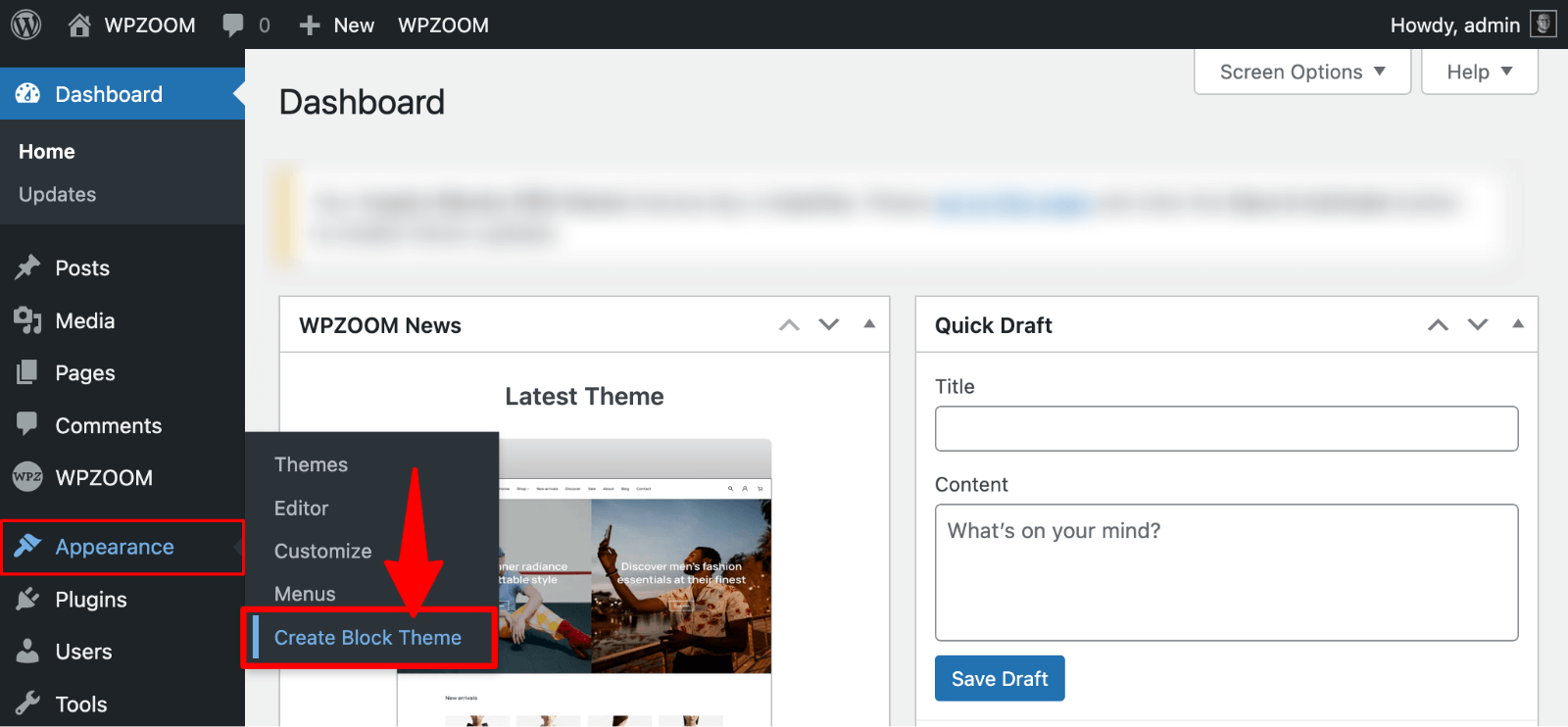
Install the plugin and activate it.
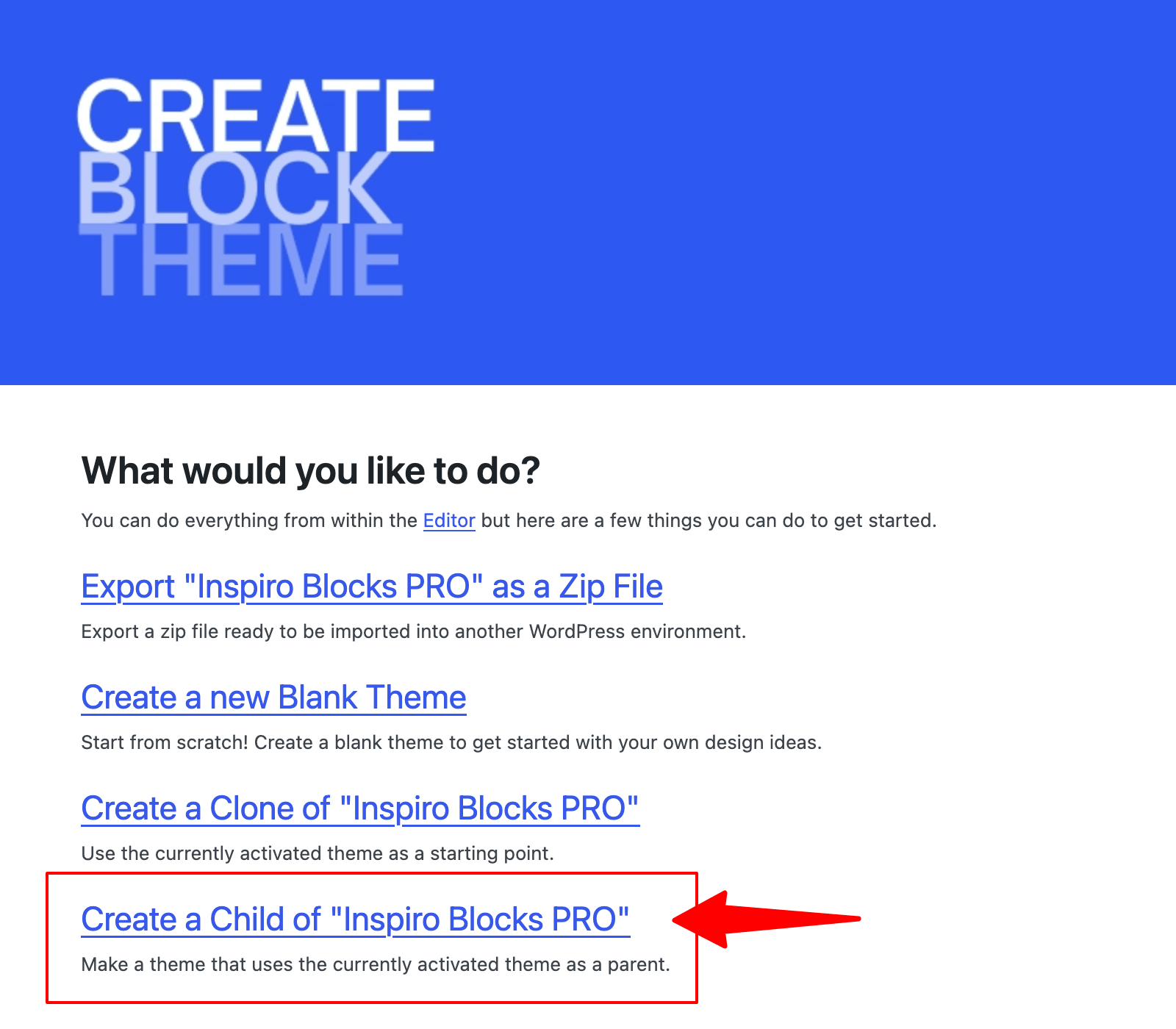
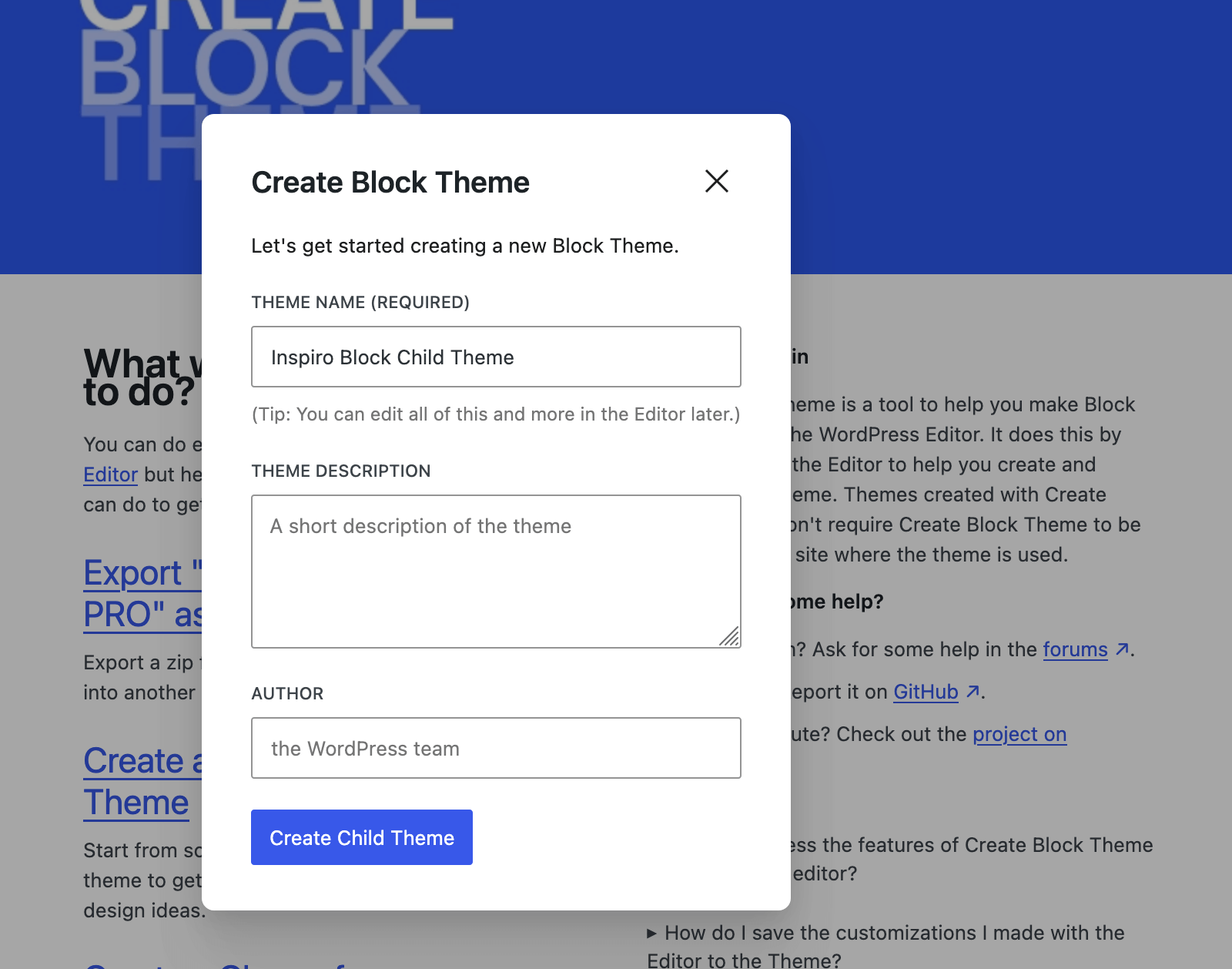
Use the plugin’s interface to generate a child theme for block-based themes.
Customize the child theme as needed.
Customizing Your WordPress Child Theme
Now you have already set up your WordPress child theme, the next part is a customization. A child theme lets you personalize your website without modifying the core files of the parent theme, ensuring that updates to the parent theme don’t overwrite your customizations.
1. Editing the style.css File
The style.css file is the heart of your child theme’s styling. It overrides or adds styles to the parent theme without altering its original CSS. To get started:
Open the style.css file located in your child theme folder.
Add custom CSS rules to change the look of your site. For example, you can modify colors, fonts, or layouts to suit your design preferences.
/* Example: Change header background color */
.site-header {
background-color: #3498db;
}
Make sure you don't duplicate parent theme CSS selectors unless you intend to override them. It’s a good practice to check if the style is inherited from the parent theme before making changes.
2. Adding Custom Functions to Functions.php
The functions.php file in your child theme allows you to add custom PHP functions and modify the behavior of your WordPress site. For instance, you can register custom post types, add widgets, or change the way WordPress handles certain tasks.
Here’s an example of how to add a custom function to enqueue your child theme’s styles:
nction custom_widget_area() {
register_sidebar(array(
'name' => 'Custom Widget Area',
'id' => 'custom-widget',
'before_widget' => '<div class="custom-widget">',
'after_widget' => '</div>',
'before_title' => '<h3>',
'after_title' => '</h3>',
));
}
add_action('widgets_init', 'custom_widget_area');
This ensures both the parent and child theme stylesheets are loaded properly.
3. Modifying Template Files
Child themes let you override specific template files from the parent theme. For example, if you want to customize how your posts are displayed, you can copy the single.php or page.php file from the parent theme into your child theme’s directory and then modify it as needed.
Simply create a new file in your child theme folder with the same name as the parent theme’s template file, and WordPress will use your version instead.
4. Customizing Block Themes via Theme.json
Block themes in WordPress use a theme.json file to control styles, block settings, and theme options. You can add a theme.json file to your child theme and modify it to customize colors, typography, spacing, and layout for block-based elements like the block editor.
Here’s a basic example of customizing colors:
{
"settings": {
"color": {
"primary": "#FF5733",
"secondary": "#C70039"
}
}
}
This ensures your block-based elements adhere to your custom design.
5. Adding JavaScript and PHP Hooks
Child themes allow you to add custom JavaScript or PHP hooks that can alter or enhance the behavior of your site. For instance, you can enqueue custom JavaScript files in the functions.php file:
function enqueue_custom_js() {
wp_enqueue_script( 'custom-js', get_stylesheet_directory_uri() . '/js/custom.js', array('jquery'), null, true );
}
add_action( 'wp_enqueue_scripts', 'enqueue_custom_js' );
This will ensure your custom JavaScript is properly loaded alongside your theme. You can also add custom PHP hooks to change site behavior based on specific actions or filters.
By customizing the style.css, functions.php, template files, and using modern techniques like theme.json for block themes, you can easily enhance your child theme without affecting the parent theme’s functionality. These customizations ensure a personalized, secure, and updatable WordPress website.
Key Tips for Updating and Maintaining WordPress Child Theme
Maintaining a WordPress child theme is not a big deal, you can only remember some things that are mentioned below.
First, update the parent theme regularly to keep your site secure and functional. Always test updates on a staging site before applying them to your live site.
Next, document changes by updating the version number in the style.css file and keeping a changelog of significant modifications. This helps track the history of your child theme.
Finally, back up your customizations separately from general site backups. Store them in multiple locations and periodically test by restoring them on a staging site to ensure they’re working correctly.
These practices ensure your child theme stays secure, organized, and compatible with future updates.
Conclusion
Creating a WordPress child theme is the best way to customize your website without risking your changes during parent theme updates. By following the simple steps to set up a child theme and customizing it through CSS, PHP, or template files, you can ensure your site remains secure and flexible.
Using plugins like WP Child Theme Generator or Create Block Theme Plugin can simplify the process for beginners.
And with best practices like regularly updating your parent theme, documenting changes, and backing up customizations, you’ll keep your child theme organized and future-proof. That allows you to safely personalize your WordPress site while ensuring that updates don’t overwrite your custom work.
FAQS
1. What is a WordPress child theme?
A WordPress child theme is a theme that inherits the functionality and design of a parent theme. It allows you to customize your site without altering the original parent theme, ensuring that updates to the parent theme don’t overwrite your custom changes.
2. Why should I use a child theme instead of modifying the parent theme directly?
Modifying the parent theme directly can result in losing your customizations when the theme gets updated. A child theme ensures your changes are preserved, even after parent theme updates, and allows for safer and more flexible customization.
3. Can I add custom features to my child theme?
Yes! Child themes allow you to add custom features like CSS changes, new PHP functions, template modifications, and even JavaScript. This makes it easy to enhance the functionality and appearance of your site without affecting the parent theme.
4. Is it possible to use plugins to create a child theme?
Yes! If you prefer not to code, you can use plugins like the WP Child Theme Generator or Create Block Theme plugin. These tools allow you to quickly generate a child theme without writing code, making it easier for beginners or those in a hurry.
5. How do I maintain my child theme?
To maintain your child theme, ensure you regularly update the parent theme, back up your child theme files separately, and document any changes in a changelog. It's also good practice to test theme updates on a staging site before applying them to your live site.